

Siemens presented TIA Portal V21.1 at SPS 2026. This full release starts a new way of maintaining projects within the V21 line. It also brings practical changes to STEP 7, WinCC Unified, Openness and simulation. For engineers who spend their time keeping machines running, the interesting bits are easier project handovers, more options for keeping live data block values, and hardware configuration you can review as text.
V21.1 starts a continuous V21 version line
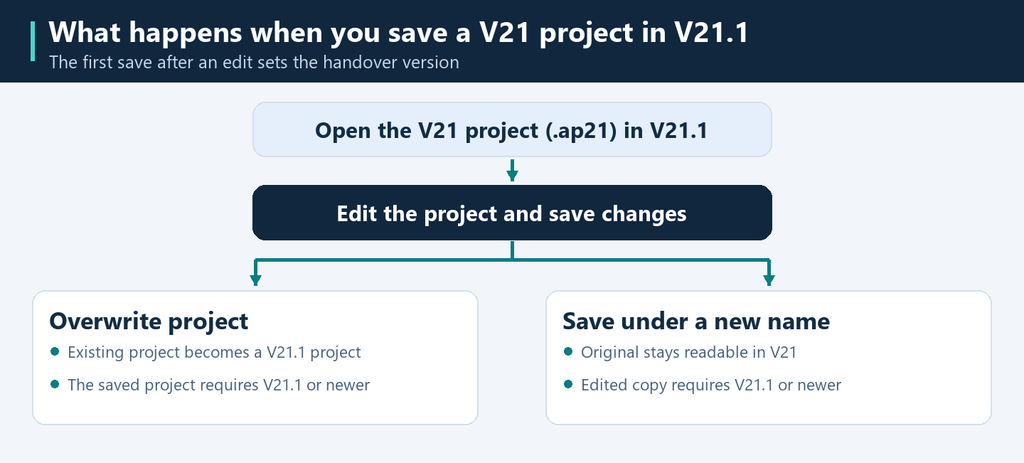
A V21 project can open directly in V21.1 without a separate project upgrade. The first save after you modify it brings up a choice to overwrite it or save it under a new name. A copy saved as a V21.1 project requires V21.1 or newer. If you share the job with a customer or another integrator, ask what they’re running before you send the project back.
The installation and the feature licence now follow separate paths within V21.x. You can install a newer V21.x release and use the scope covered by your existing V21 licence. New firmware or HMI runtime features can require a newer entitlement for the relevant product. Siemens’ new TIA Installer brings products, engineering options and hardware support packages into one workflow and can select matching products based on an existing V21 installation. Siemens’ V21.1 announcement
STEP 7 can keep more data block values after a structural change
Say a conveyor’s global DB holds the line’s tuned timing values and you add a new parameter inside a nested structure. Siemens has expanded support for retaining the current online values of unchanged variables when a supported structural change is downloaded. The scope includes optimised instance and global DBs, adding or deleting members inside nested structures, and modifications to nested UDT structures.
Siemens lists S7-1500 firmware V4.1 or higher and S7-1200 G2 firmware V4.2 for this feature. It also exposes the capability through Openness. I’d test this first on a spare CPU with a small DB and several distinctive online values. Make one supported change, then check which values survive and how the new field is initialised. Siemens News Overview, slide 156.
Hardware configuration can go into Git as readable text
STEP 7 V21.1 adds export and import for Hardware Declaration Data, or HWD. The hardware configuration is represented as YAML. Siemens lists S7-1500 CPUs with central modules, PROFINET IO devices, Industrial Ethernet and IO systems in the initial scope. V21.1 Openness also exposes HWD export and import.
If you maintain several similar conveyor cells, try exporting a known configuration, changing one item and looking at the Git diff. A readable change history could help when you are deciding which machine variant received a hardware change. Siemens’ launch announcement groups this work under text-based engineering. Its technical slides describe HWD as the V21.1 mechanism and put deeper integration with SIMATIC Source Documents on the roadmap. Siemens News Overview, slides 226 and 256.
Selected S7-1500 CPUs can run user OBs in parallel
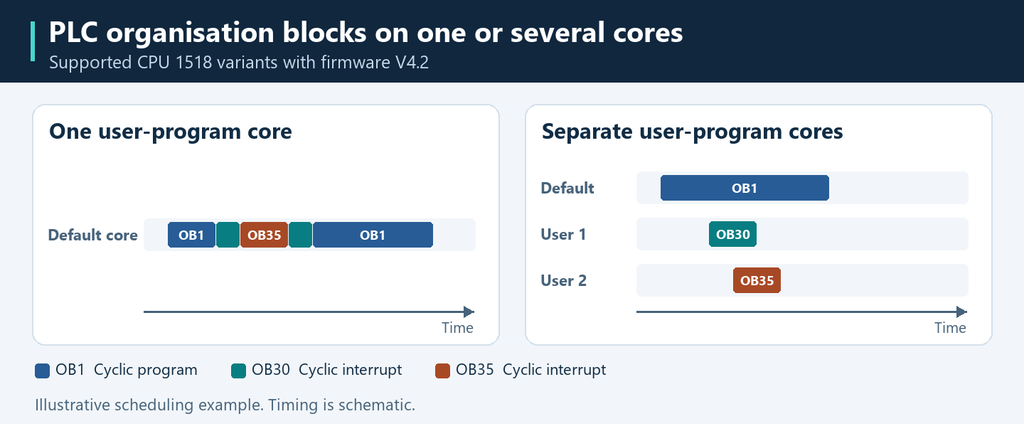
Siemens adds configurable user-program multicore support to the CPU 1518-3 PN family, including the 1518F, T and TF variants, with firmware V4.2. OB1 remains on the default core. Supported interrupt OBs can run on additional user cores. Siemens also describes a multicore implementation for the CPU 1508S software controller, with the V40.2 release planned for December.
If a machine is already pushing its timing limits, look at the work done by the periodic OBs and the data they share before deciding what to move. Siemens adds a MUTEX data type and multicore diagnostics because parallel tasks can access the same data. The engineering decision depends on CPU support and measured workload. Siemens News Overview, slides 154, 195 and 202.
WinCC Unified introduces responsive screen layouts
WinCC Unified V21.1 adds Grid, Stack and Wrap containers plus layout breakpoints. That gives you a way to design an overview whose layout rearranges at different screen widths. Think of a conveyor overview with status cards across a wide display and the same cards stacked on a narrower panel. Try the same alarm view and faceplates at the smallest screen size operators will actually use, including their touch targets and navigation.
Siemens also lists historical access through OPC UA, MQTT custom payloads, tag collaboration, and expanded Openness support for MasterCopies and version control. Exact features depend on the WinCC target and entitlement. Siemens SPS Digital Experience
PLCSIM V9 combines Standard and Advanced installation
Siemens is moving both modes into the S7-PLCSIM Advanced V9 setup. A valid STEP 7 licence covers Standard mode. Advanced mode still needs its own licence for features such as the simulation API, co-simulation and virtual time. The V9 scope covers the S7-1500 and S7-1200 G2. Siemens directs first-generation S7-1200 users to PLCSIM Standard V21. That distinction matters when one test bench serves both generations. Siemens News Overview, slides 313–315.
Openness and Startdrive changes worth checking
V21.1 ships the V21 long-term support APIs alongside new V21.1 APIs. Siemens says applications built for V21 can continue to work on that API baseline. A tool that automated a V21 engineering task can have a different test checklist from a tool adopting V21.1-specific functionality, such as HWD. The existing connection to the Eigen Engineering Agent carries forward from earlier versions. Startdrive also adds commissioning-mode interfaces in Openness and introduces support for additional SINAMICS drives. Siemens News Overview, slides 2 and 252–256.
Where to check download availability
Siemens announced V21.1 on 19 November and lists digital delivery for the end of November 2026, with package delivery in December. Look up the STEP 7 V21.1 sales and delivery release in Siemens Industry Online Support and check availability for your product. Siemens Industry Online Support
The version number is an easy way to tell these releases apart. The initial V21.1 release is 21.1.0.0. V21 Update 1 is 21.0.1.0. Siemens’ V21 numbering guide
What I’d test first
For a controls team, I’d pick one representative machine and work through three things in the lab. Open and save a project copy to see how the handover works. Verify which DB values carry through a supported change. Then exercise the PLC and HMI in the same simulation workflow you rely on for commissioning. That will tell you which part of V21.1 will save you time on the next job.
For more on automating engineering workflows, see the Antomatix guide to TIA Portal Openness.
Opening V21 Projects in TIA Portal V21.1
What happens when you save, go online or hand the project back

Yes. TIA Portal V21.1 can open a V21 project directly. The important decision comes when you first save a change. If you overwrite the original project, the site engineer who still has V21 may be unable to open your handover. If you save a separate V21.1 copy, you keep an original the site can still open in V21. Any changes you make in the newer copy stay with that copy. Siemens News Overview, slides 240–242.
One project handover and three version checks
Imagine you have a V21 conveyor project and the customer has asked for a change to its accumulation logic. Your laptop has V21.1, while the customer’s maintenance laptop still has V21. Before editing, establish three things.
Installed engineering version. Can both teams open and service the deliverable you plan to hand over?
Licence entitlement. Does each team have the STEP 7, WinCC or option entitlement needed for the features the job uses?
Configured target. Which firmware is the PLC on, and what runtime version does the HMI project target?
You can open the V21 project in V21.1 without a project upgrade. On the first save after an edit, Siemens shows a prompt to overwrite the project or save under a new name. The slides show .ap21 for V21 and .ap21_1 for V21.1. Treat the saved V21.1 copy as a project for V21.1 or later. Agree the deliverable version before you first save. Siemens News Overview, slides 5–7 and 240–242.
Can I keep my V21 licence
The V21.x model separates the engineering installation from the scope enabled by a licence. If your job only needs the existing licensed features and targets, the move to V21.1 can be an installation change. If you need new features tied to a newer PLC firmware or HMI runtime, check the entitlement for that product. A STEP 7 licence upgrade and a WinCC Unified licence upgrade can be separate decisions. The Siemens licensing deck also shows that engineering options can depend on the licence of their parent product. Check those options as part of quoting the job. Siemens release and licensing presentation
Can I go online without stopping the PLC
Siemens calls its improved cross-version PLC connectivity Smooth Forward. Its examples include monitoring and diagnostics, PLC upload into a V21.x project and delta download for changes eligible to load in RUN. Opening the project on a laptop and downloading a change to a running controller are separate operations. For the conveyor example, let the compile and download preview tell you what the change requires and follow the site’s approval procedure. A hardware change that requires CPU STOP still needs an outage. Siemens also calls out a device-version upgrade before editing and downloading changes to WinCC Unified View of Things or a WinCC Runtime Professional device. Siemens News Overview, slides 10–11 and 153.
What if the project is on V20 or older
A move from V20 to V21.1 crosses into the new version line. Siemens shows a project upgrade for V14 through V20. Older versions can require intermediate steps. If you maintain a site on V20 and a customer needs the service project back in V20, agree the plan before you bring the project into V21.x. Siemens News Overview, slides 242–243.
A simple handover checklist
Ask the customer which TIA Portal version, products and options their maintenance team has available.
Archive the source project before opening a working copy in the new environment.
On the first save, choose a new name if you need to preserve a separate V21 handover copy.
Check target PLC firmware, HMI runtime and hardware support packages. Where available, ProjectInfo.txt records the minimum TIA version and engineering dependencies.
Compile offline, review what changed and record the required engineering version with the handover archive.
My advice is to agree the handover version before you start editing. The cost of a short conversation is small compared with the cost of a maintenance laptop that cannot open the latest project when production needs support.