

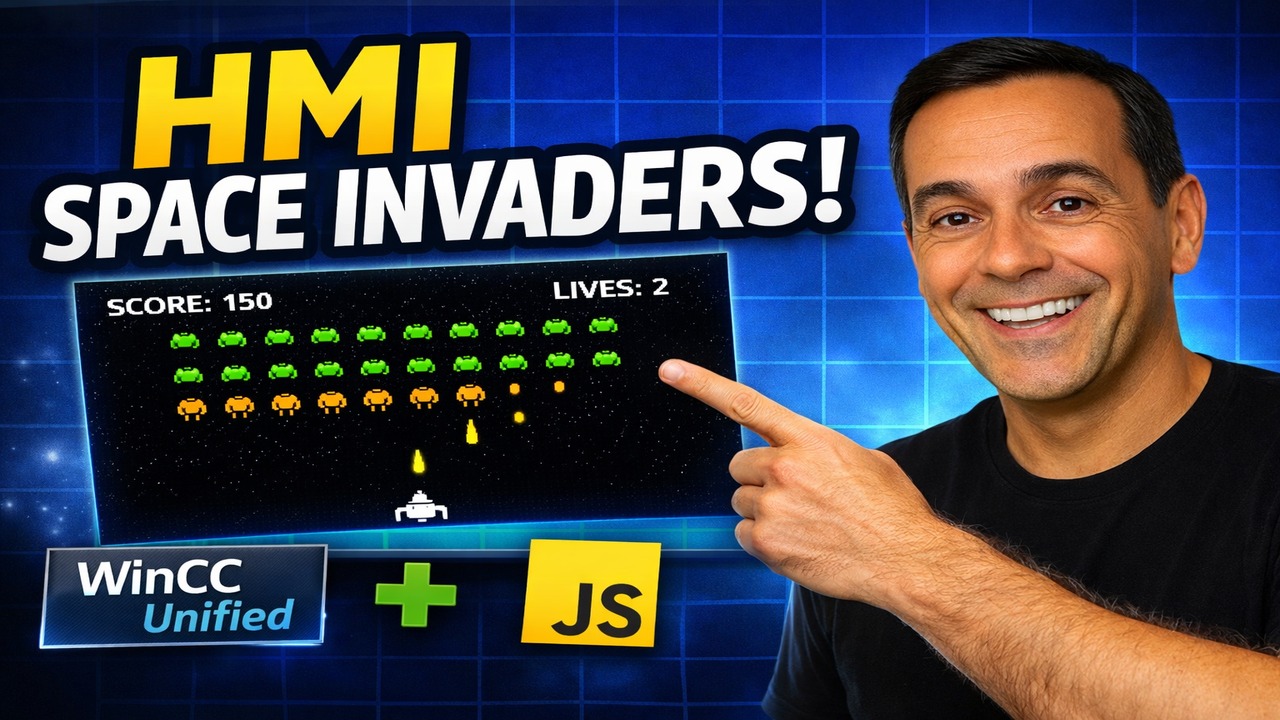
Industrial HMIs aren’t built for games… which is exactly why this project is such a good learning exercise.
In this video I built a Space Invaders–style mini game inside WinCC Unified PC Runtime using runtime scripting (JavaScript) and simple screen objects (rectangles/images/text). It’s fun, but it also teaches the same skills you use in real HMI work: finding screen items, updating properties, handling events, timing, and debugging with traces.
What you’ll build
By the end, the HMI screen includes:
- A player ship that moves left/right
- A player bullet with a fire cooldown
- A grid of invaders that march, bounce, and drop down
- Enemy bullets (multiple on screen) that shoot faster as invaders die
- HUD text: Score and Lives
- Win / Game Over behavior
- Buttons on the HMI for Start / Stop / Left / Right / Fire
All of that is driven by a single runtime script module spaceInviders3.
Screen setup in WinCC Unified
The key is consistency: your screen item names must match what the script expects.
Required screen items (names matter)
Play area / UI
PlayField(container/rectangle defining the boundaries)TxtScore(text field)TxtLives(text field)Player(rectangle/image for the ship)
Player bullet
Bullet
Invaders (5 rows × 10 columns)
Inv_0_0…Inv_0_9Inv_1_0…Inv_1_9- …
Inv_4_0…Inv_4_9
Enemy bullets (object pool)
EBullet_0…EBullet_4(or more if you increase the pool)
In the video, you can see the workflow: drag & drop objects onto the screen, resize, align them into a grid, and then wire button events.
The script idea: “update everything every tick”
This game is built like most simple real-time apps:
- Start() initializes the screen and resets the game
- A repeating tick() updates movement + collisions
- SetTimeout recursion schedules the next tick (stable and simple in runtime)
- Buttons call exported functions to control the player
Your script exports a small “public API” that the HMI events call spaceInviders3:
Start(screen)Stop()SetLeft(true/false)SetRight(true/false)Fire()
That separation is clean: the HMI only triggers those functions, and the game handles everything else internally.
Performance trick: caching screen items
WinCC Unified looks up items with screen.FindItem("Name"). Doing that constantly inside a fast loop can get slow. So the script caches results the first time you ask for an item spaceInviders3:
function get(name) {
  if (!cache[name]) cache[name] = screenRef.FindItem(name);
  return cache[name];
}
This one pattern is the difference between “works on a PC” and “works reliably in runtime.”
Movement boundaries: clamp()
To stop the ship leaving the playfield, the script clamps the X position between min and max spaceInviders3:
function clamp(v, min, max) { return Math.max(min, Math.min(max, v)); }
Then in the tick:
- compute
dxfromleftHeld/rightHeld - update
Player.Left - clamp inside
PlayField
This is exactly the same technique you’d use for any draggable UI element.
Collision detection: overlaps()
Collisions are done with simple rectangle overlap checks (AABB collision) spaceInviders3:
function overlaps(a, b) {
  return (
    a.Left < b.Left + b.Width &&
    a.Left + a.Width > b.Left &&
    a.Top < b.Top + b.Height &&
    a.Top + a.Height > b.Top
  );
}
That works for:
- player bullet vs invader
- enemy bullet vs player
- invader vs player (lose condition)
No physics engine needed.
Invader movement: bounce + drop
Classic Space Invaders behavior:
- Move left/right as a group
- If any invader hits the left/right boundary → reverse direction and drop down
- If invaders reach the player line → Game Over
The script calculates the “swarm edges” by scanning all alive invaders each tick, finding the minimum left and maximum right positions spaceInviders3. That’s why dead invaders no longer affect the edge detection.
Shooting: player bullet + cooldown
The player can only fire if:
- the game is running
- the bullet isn’t already visible
- the cooldown has expired
That’s handled with a timestamp check (lastFireMs) spaceInviders3.
Practical reason: it prevents “machine-gun tapping” and keeps gameplay readable on an HMI.
Enemy shooting: bullet pool + dynamic difficulty
Enemy bullets are implemented as an object pool:
- You pre-create
EBullet_0..EBullet_4 - When an invader fires, the code finds a non-visible bullet and reuses it
- When it leaves the playfield or hits the player, it becomes available again
This is a pro technique because it avoids creating/destroying objects during runtime.
Even better: the fire rate speeds up as invaders die spaceInviders3. The script calculates a smaller interval based on how many are dead, with a minimum “difficulty floor.” That gives the classic Space Invaders tension: fewer invaders = more danger.
HUD + Game Over
Score increases when an invader is hit, lives decrease when the player is hit. The HUD is updated through a small helper spaceInviders3:
TxtScore.Text = "Score: " + scoreTxtLives.Text = "Lives: " + lives
On Game Over:
- running stops
- bullets are hidden
- text changes to GAME OVER
On Win:
- invaders cleared
- text changes to YOU WIN
Wiring it up: HMI button events
In WinCC Unified, you connect buttons to the script like this:
Start button
- OnTapped →
Start(Screen)(or pass the current screen reference)
Stop button
- OnTapped →
Stop()
Left button
- OnPressed →
SetLeft(true) - OnReleased →
SetLeft(false)
Right button
- OnPressed →
SetRight(true) - OnReleased →
SetRight(false)
Fire button
- OnTapped →
Fire()
This “pressed/released” approach is what makes the movement feel continuous (instead of stepping).
Debugging tip: Trace output
In the video I use trace logging to confirm state changes and catch runtime errors. Your script uses a helper that tries both runtime trace and console output spaceInviders3. That’s ideal when you’re testing inside different environments.
When something doesn’t move:
- confirm
Start()is actually called - confirm names match (
Playervsplayer, etc.) - trace the button events to ensure they fire